A new version (v5) of Freesoto is out! Freesoto is a freelancer management software designed to simplify and organize the entire hiring process. In this overview, we’ll walk you through the main features of the latest Freesoto 5.0 and show you how exactly it makes finding and hiring freelancers easier, faster, and more efficient.
Explore the Freesoto Dashboard
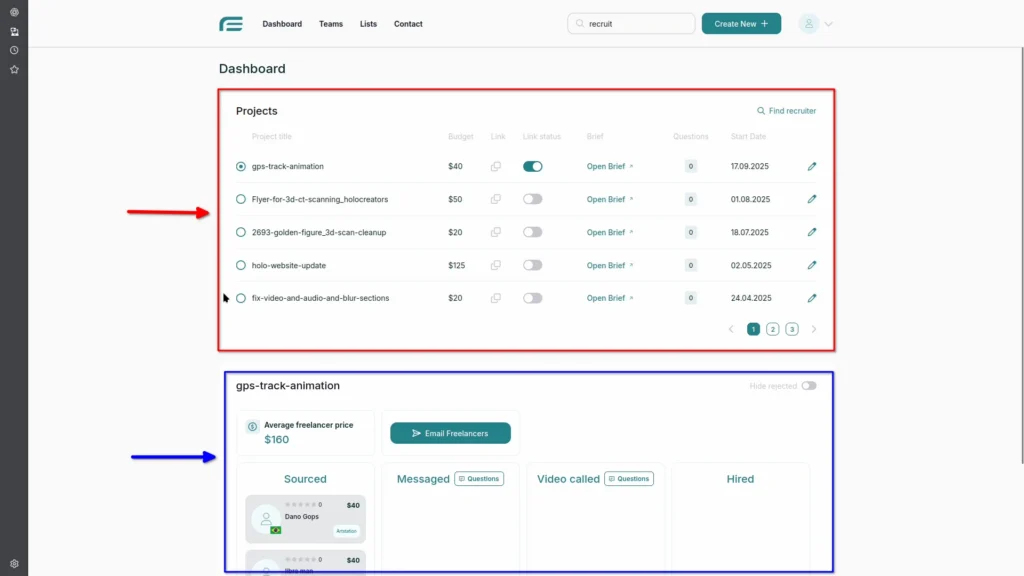
When you open Freesoto 5.0, the first thing you see is a clean and organized dashboard. At the top, projects are arranged in chronological order. And just below, you can see a list of freelancers linked to each project. As you switch between projects, the list changes automatically to show you freelancers working on that specific project.
Starting a New Project
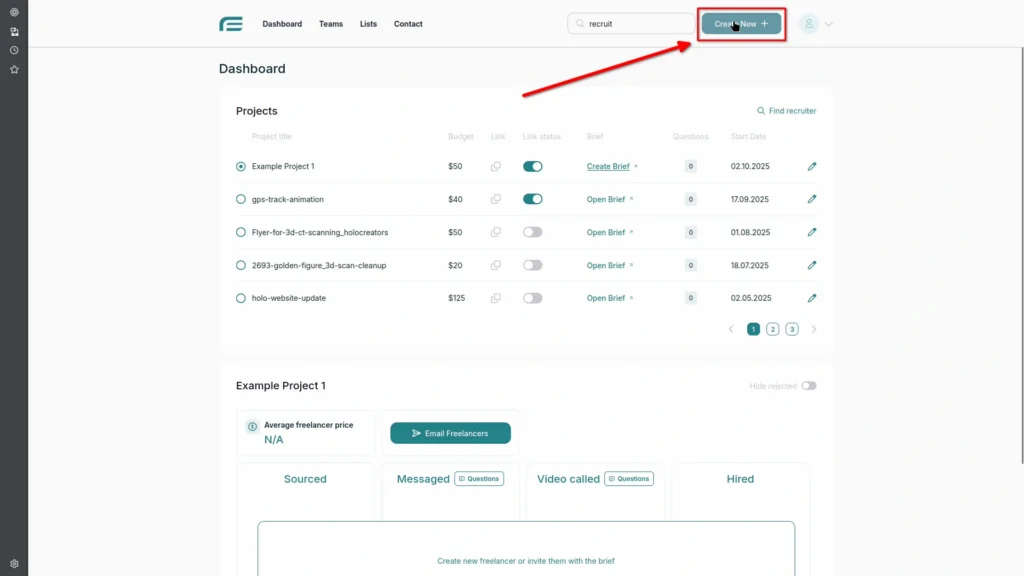
To start a new project, click the Create New button in the top-right corner of your dashboard.
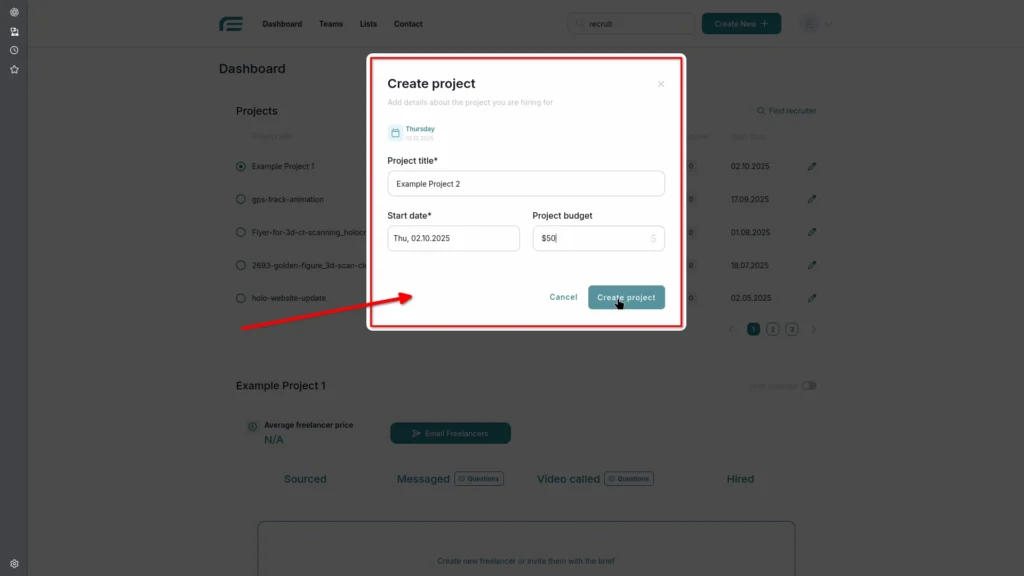
Then, select Project. A pop-up window will open for you to add the project name, start date, and budget. Once you’ve done that, click Create Project and you are ready to move to the next step.
Create a Project Brief
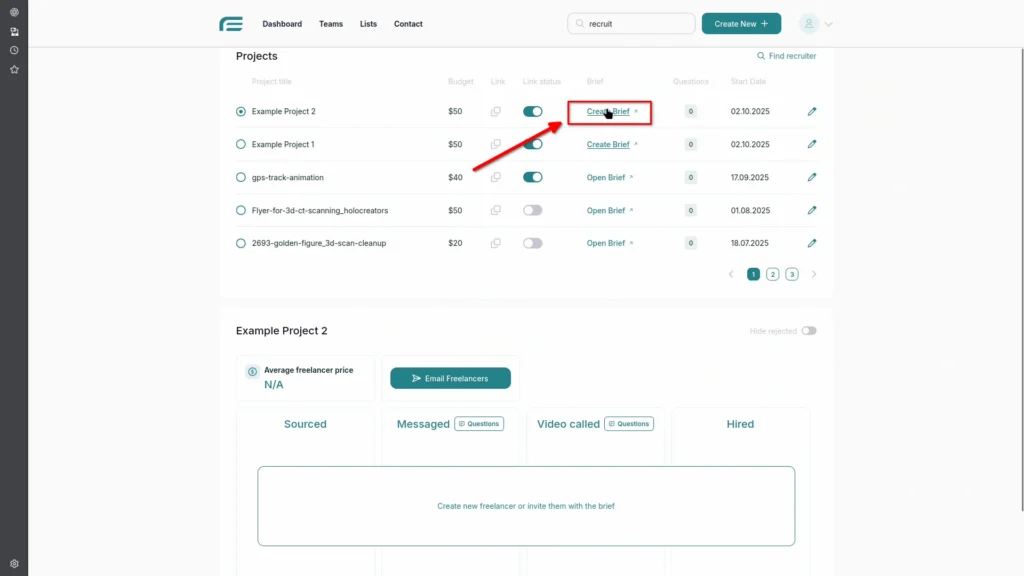
The heart of every project is its project brief. Click the Create Brief button next to the project you’re working on. This will take you to the page where you will fill in all the project details.
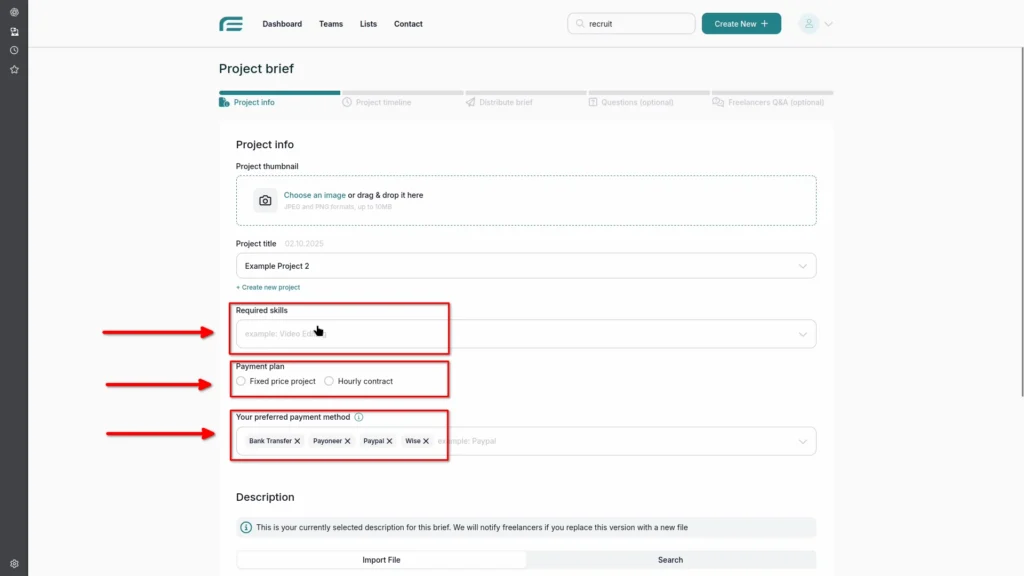
Once you’ve opened the Project Brief page, it’s time to bring your project to life. You have the option to upload a custom thumbnail for the project to add a more personal touch to it. Select an image from your device or just drag-and-drop it into the upload box. Then, enter the project title, choose the skills you’re looking for, and decide if it’s a fixed-price or hourly contract. In the end, choose your preferred payment method.
An Good Project Description is Super Important
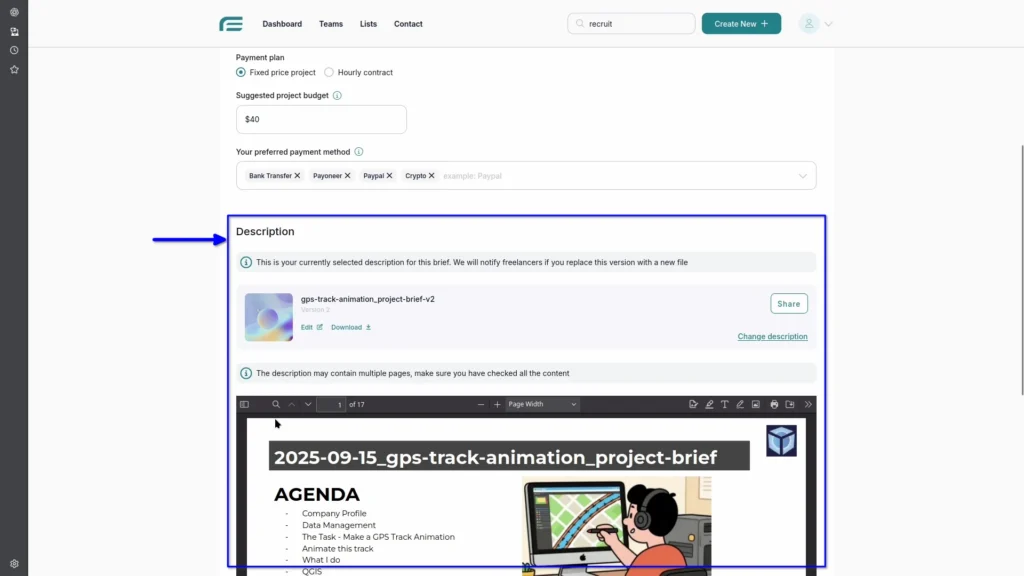
Next comes the project description. It’s the key to attracting the right freelancers. The clearer and more detailed your description is, the better applicants you’ll get. A good description helps freelancers understand exactly what you are looking for so they can decide if they’re the right fit. You can create it in Google Slides and upload to Freesoto as a PDF.
Plan Your Project Timeline
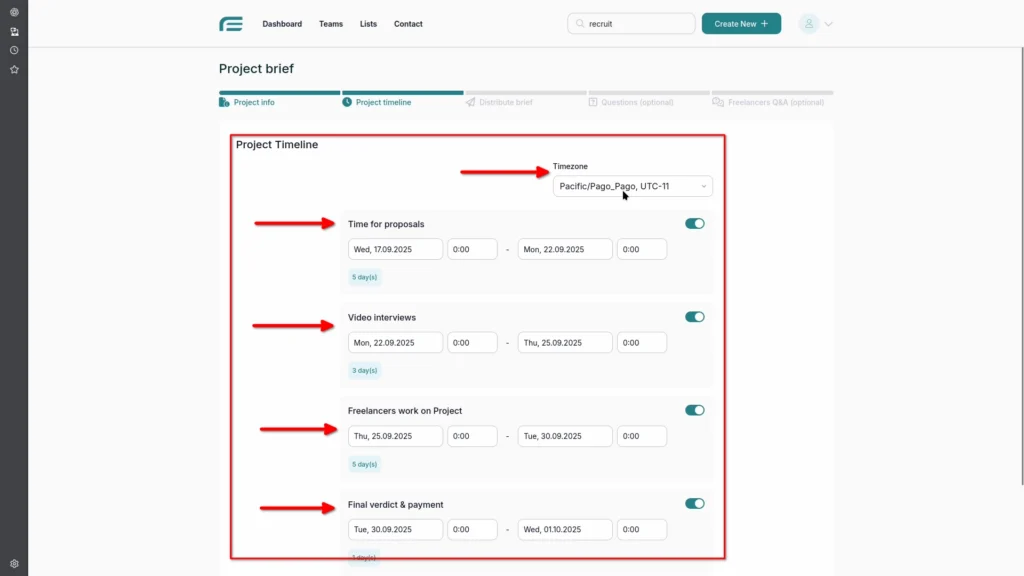
The Project Timeline feature is especially helpful for freelancers, as it shows exactly how long each step of the application process will take, when the project will need to be delivered, and when payments will be made.
Share Your Brief with Freelancers
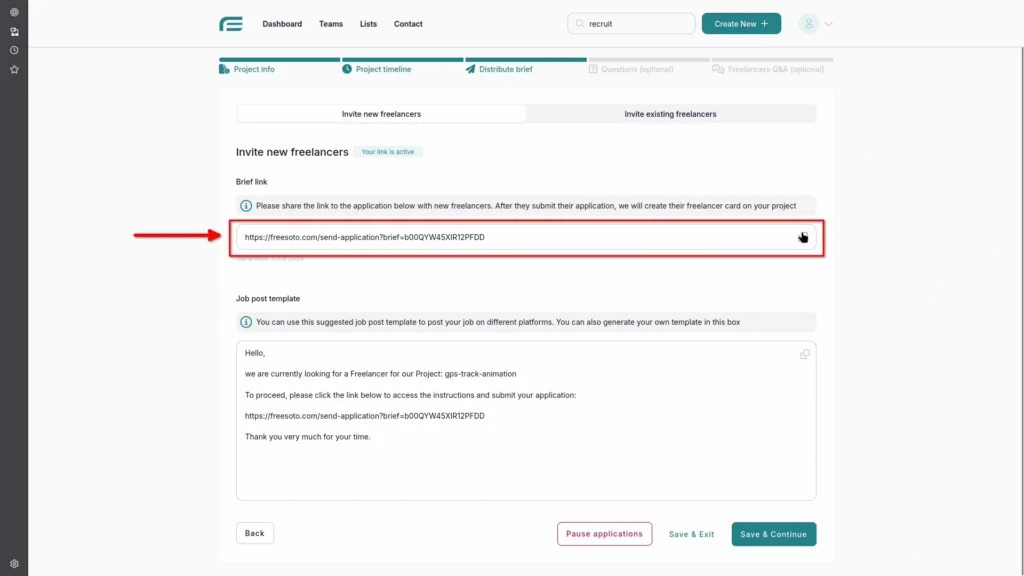
Now that your brief is ready, it’s time to share it with the freelancers you’d like to invite. Generate the link and just send it their way. Once they apply, their names will automatically appear in the “Sourced” column.
Find and Collaborate with Recruiters
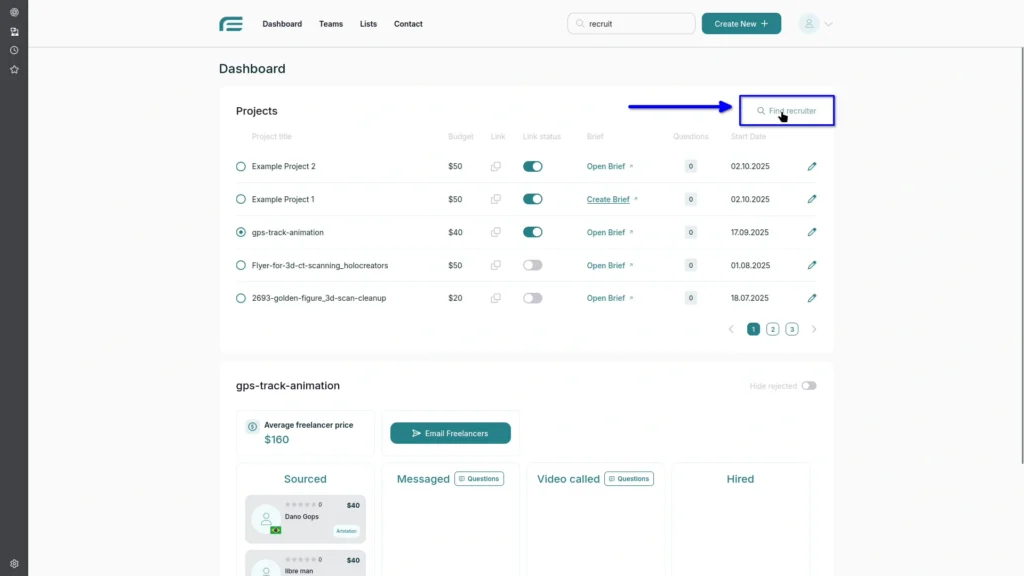
Finding freelancers can be challenging, so bringing in a recruiter can make things much easier. If you decide to do that, simply click the Find Recruiter button to see a list of recruiters available in the Freesoto database.
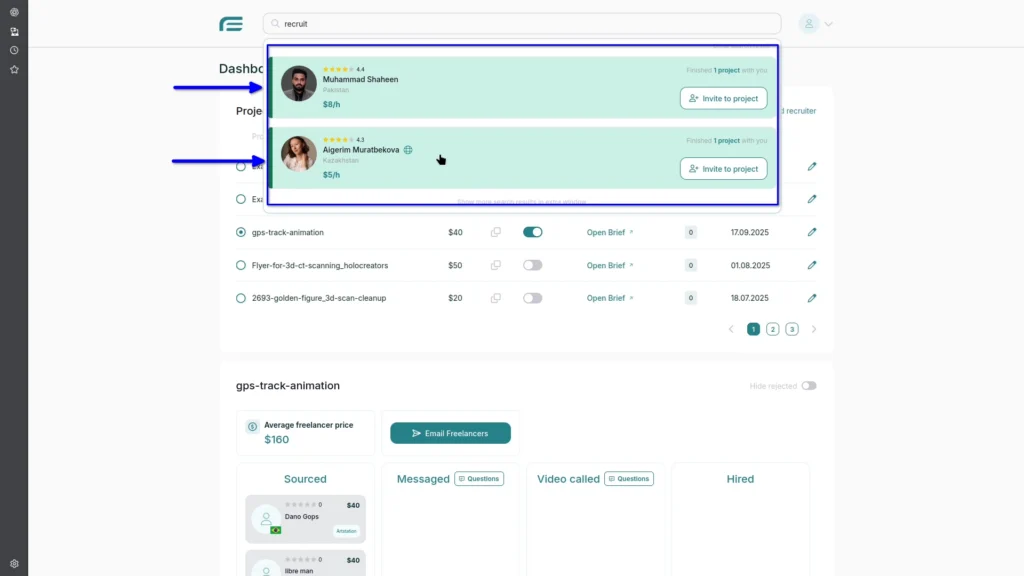
Now that you see the list of available recruiters, take a moment to browse through their profiles and check them out.
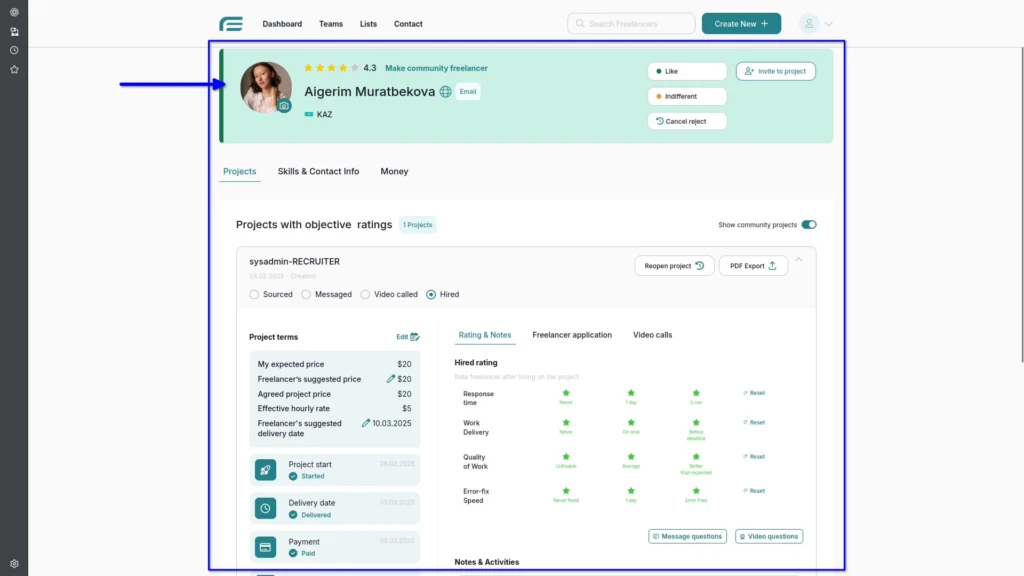
When you click on the recruiter, you can see more information about them. Their detailed profiles will show you their skills, ratings, and contact info. Recruiters work just like any other freelancer in Freesoto and their payment is handled directly by you outside the platform.
Track Progress with the Kanban Workflow
Once hired, recruiters will populate your “Sourced” column with qualified freelancers for you to review. Freesoto uses a Kanban board to visually track freelancer progress. This clear step-by-step system helps you instantly see where each freelancer stands in the hiring process.
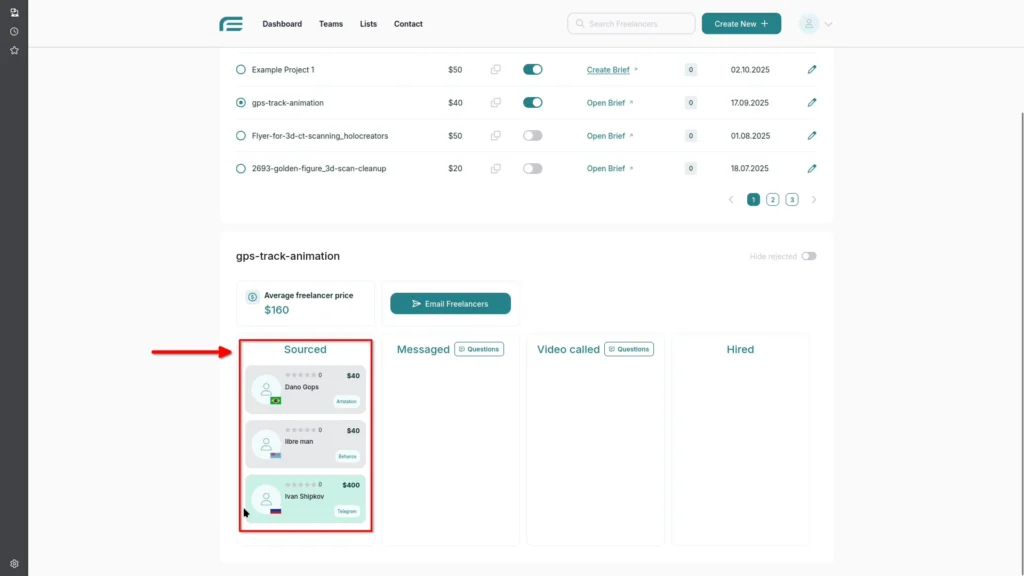
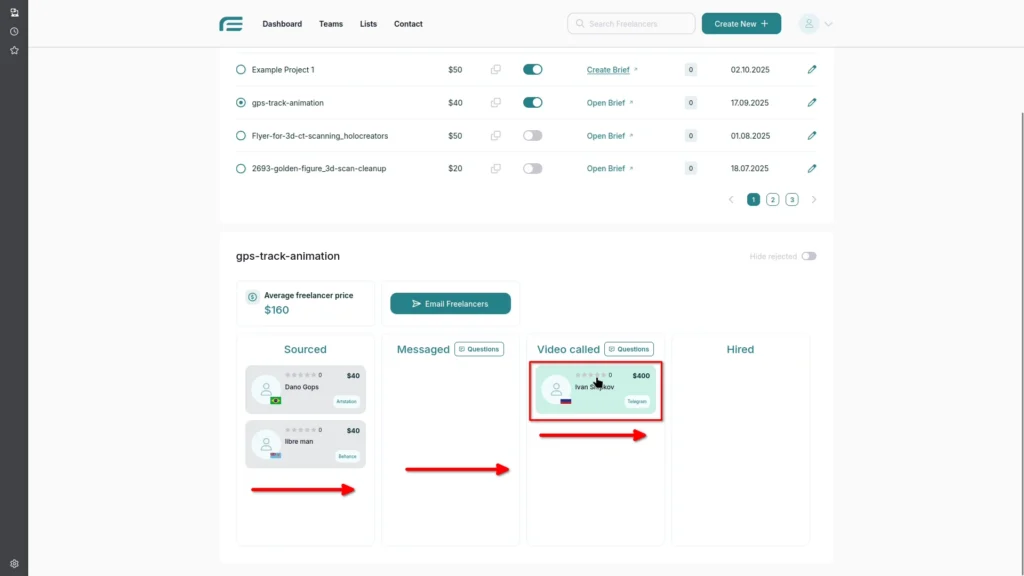
Each freelancer starts in the “Sourced” column. This is where all new applicants appear after submitting their applications. Once you start a conversation, you can move them to the “Messaged” column. If you decide to video interview them, move them to “Video Called” column after completing the interview. Finally, move those you decide to hire to the “Hired” column.
Interview and Evaluate Freelancers
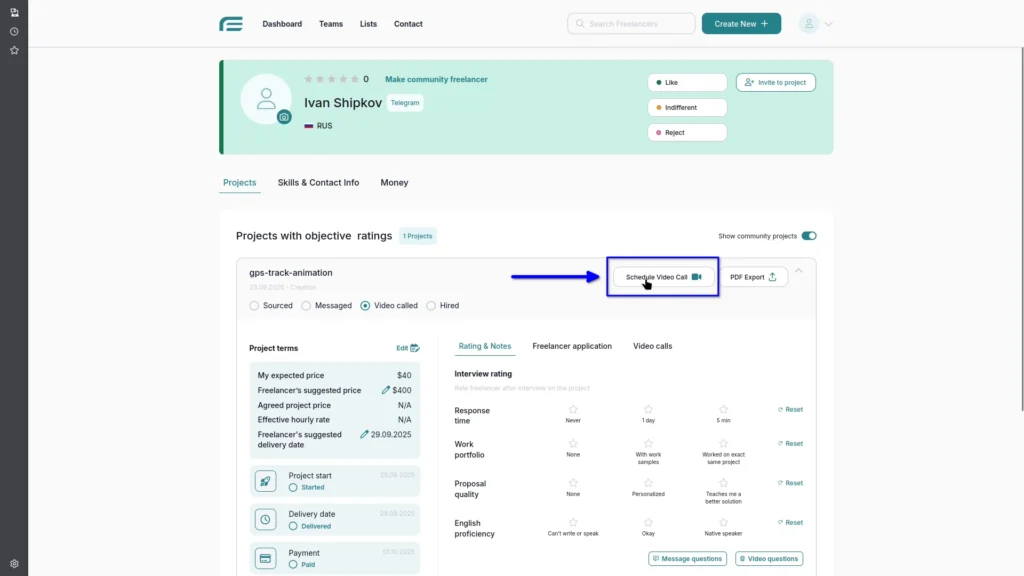
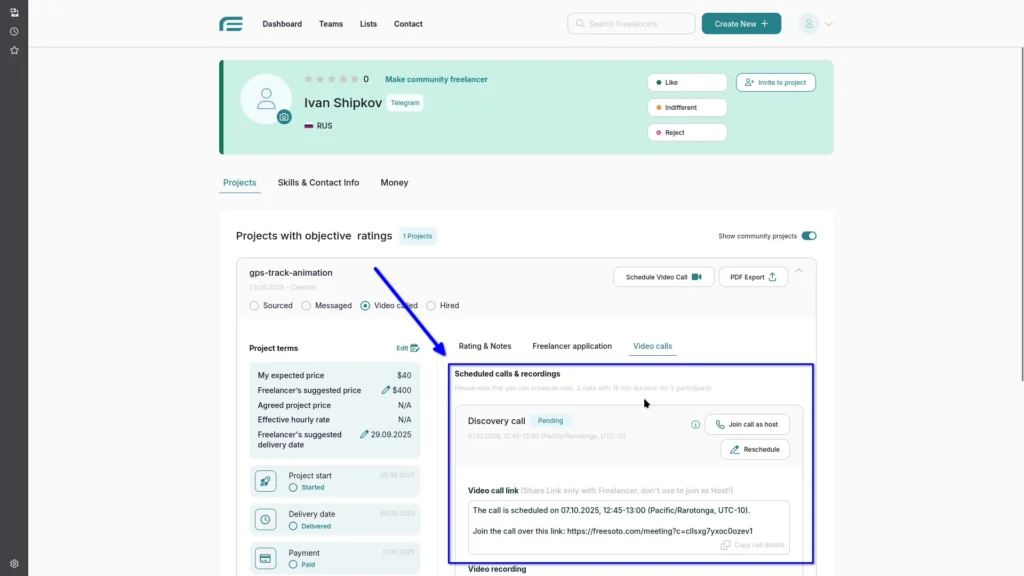
When you’re ready to talk to a freelancer, Freesoto makes it easy. You can schedule a call directly in Freesoto by clicking the Schedule Video Call button.
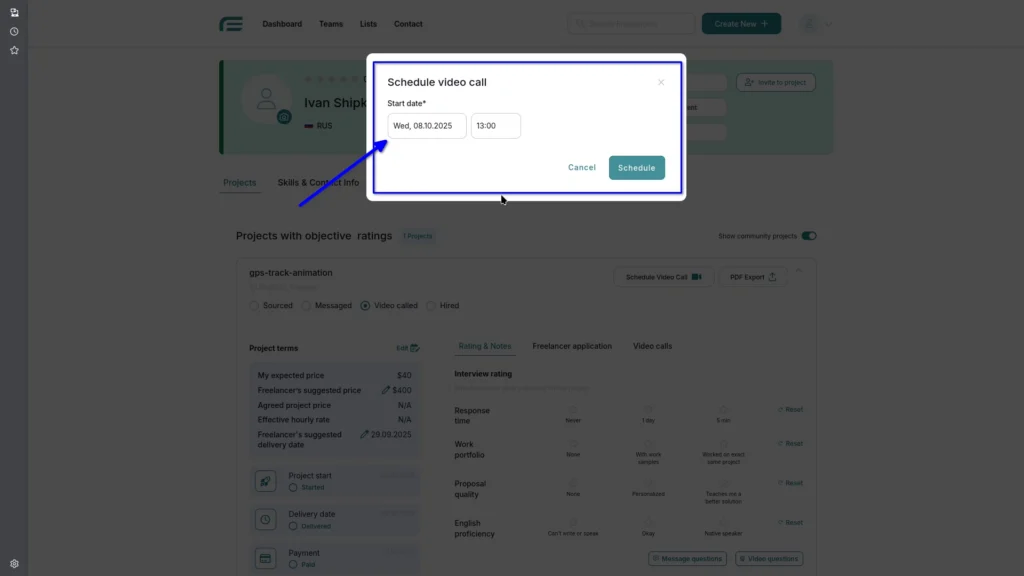
After you click the Schedule Video Call button, a pop-up window will appear where you can choose the date and time for your call and confirm the meeting.
Then send the video call link and meeting details to the freelancer. The call will be also recorded automatically, so you can review it later or share it with your team or manager.
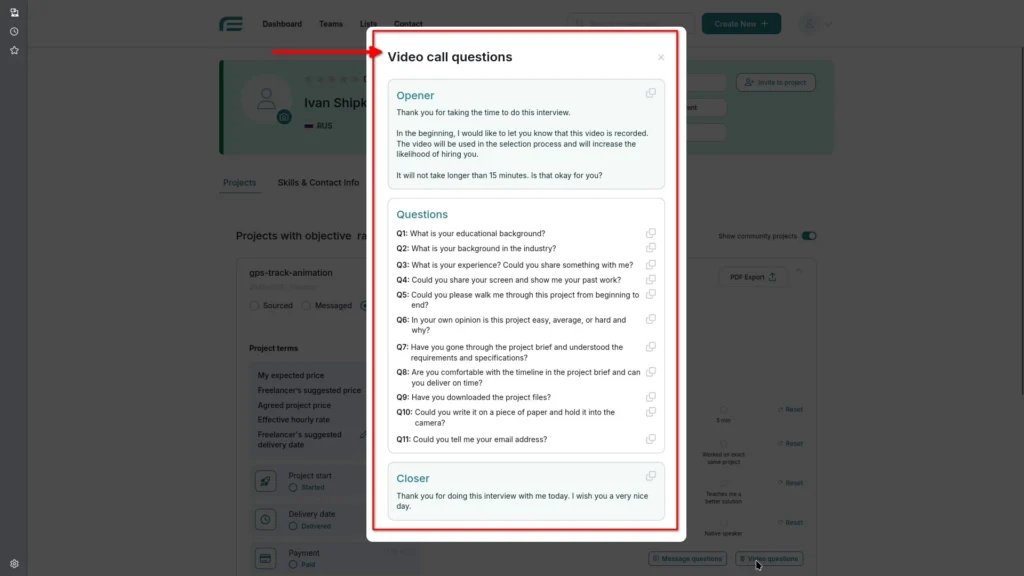
If you ever run out of ideas for what to ask a freelancer during the interview, we’ve got you covered. Freesoto offers a list of helpful questions to guide the conversation and help you learn more about freelancer’s personality, skills, and experience.
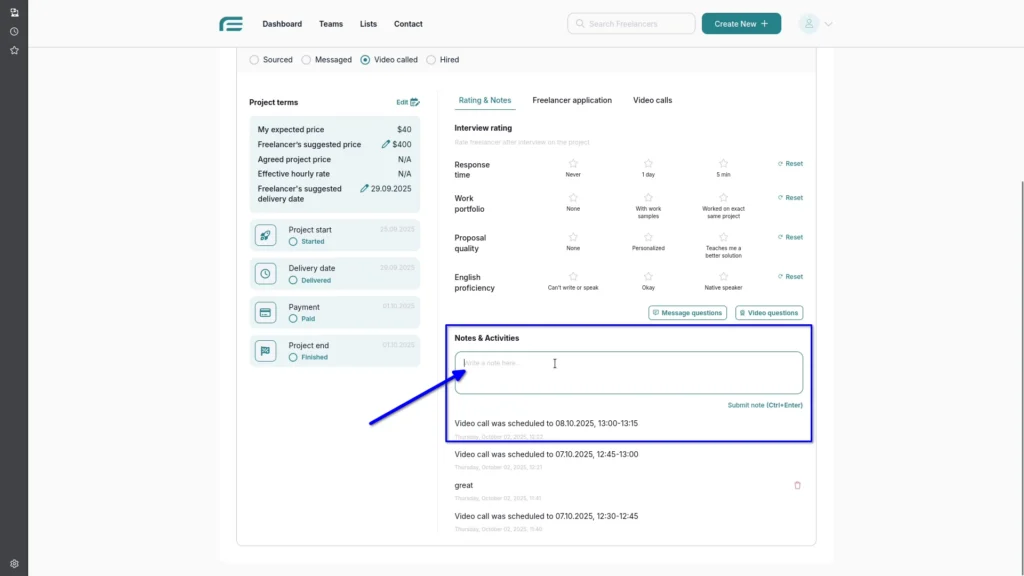
Make the Most of Notes
Don’t forget to use the Notes page. It’s a great place to write down your thoughts during your conversations with freelancers. These notes can be very helpful when you return to the Freelancer later as they will remind you of important details.
How Freesoto’s Rating System Works
While interviewing and working with freelancers, you can rate their performance. The rating system in Freesoto includes two types of evaluations. The first is a subjective rating, which lets you score freelancers based on your personal impression – how much you liked them, how professional they seemed, how well they communicated, or how confident you feel about working with them.
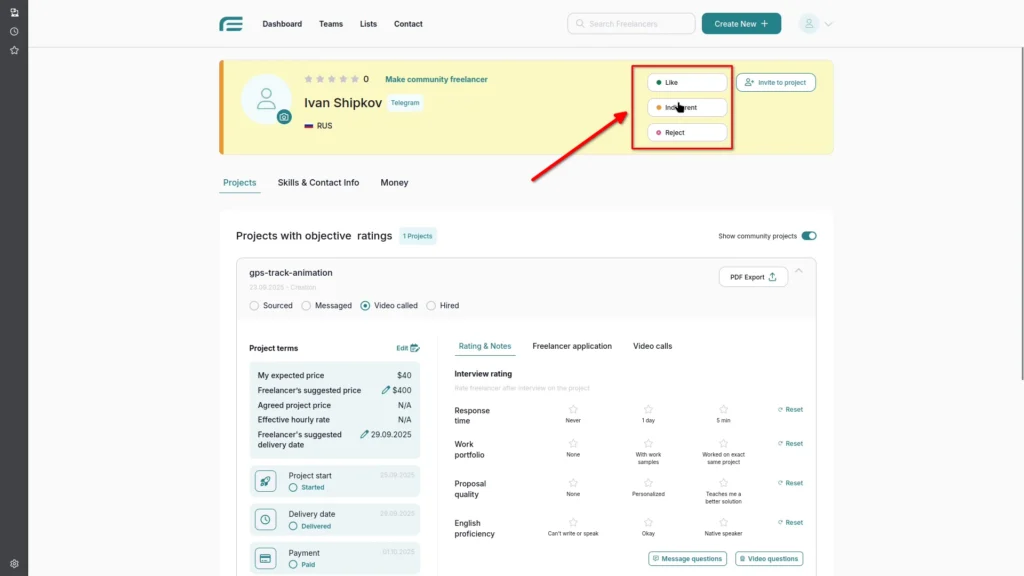
The second is an objective rating, based on measurable factors such as response time, proposal quality, work portfolio, and English proficiency. This rating affects freelancer’s star rating which is separate from your personal impression. Together, they create a balanced picture of each freelancer.
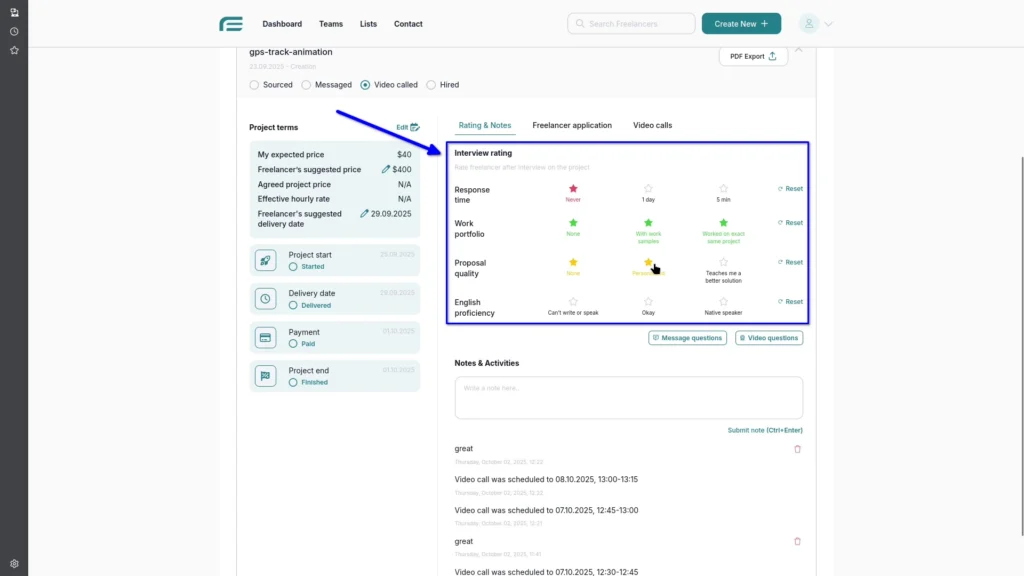
Hiring Process & Managing Milestones
Finally, let’s go over the hiring process. Once you decide to bring a freelancer on board, move them to the Hired column. By this stage, you should have already agreed on the budget and delivery date. After you confirm the hire, the system will automatically send a purchase order. It’s a formal email that includes all the terms both of you agreed on.
Each project follows a simple workflow. There are four main stages: Project Start, Delivery Date, Payment, and Project End. As you move through each stage, mark it as complete with a check mark to keep everything organized and up to date.
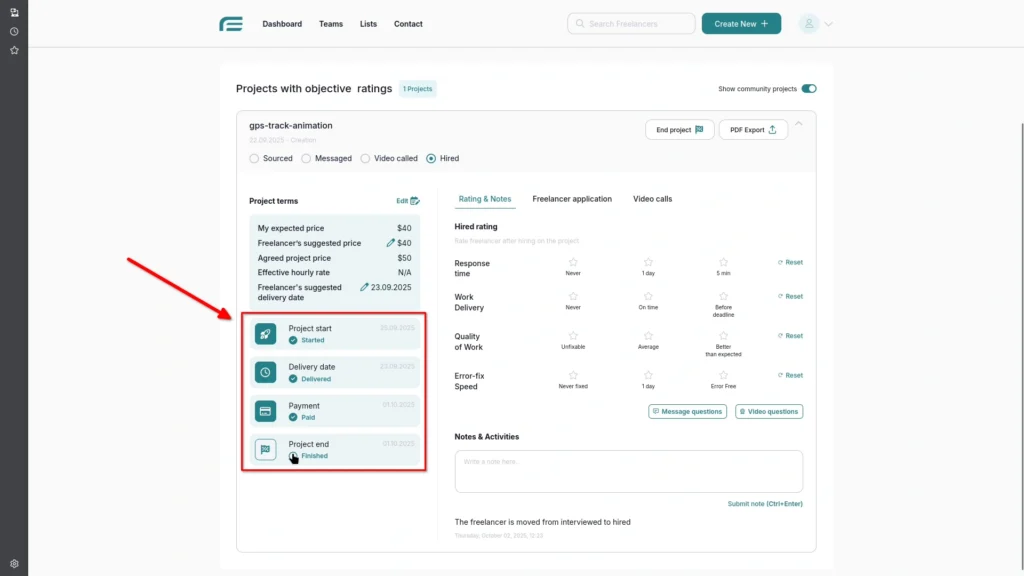
Once everything is wrapped up and your project is finished, simply open the End Project window to close the project and confirm that everything is done.
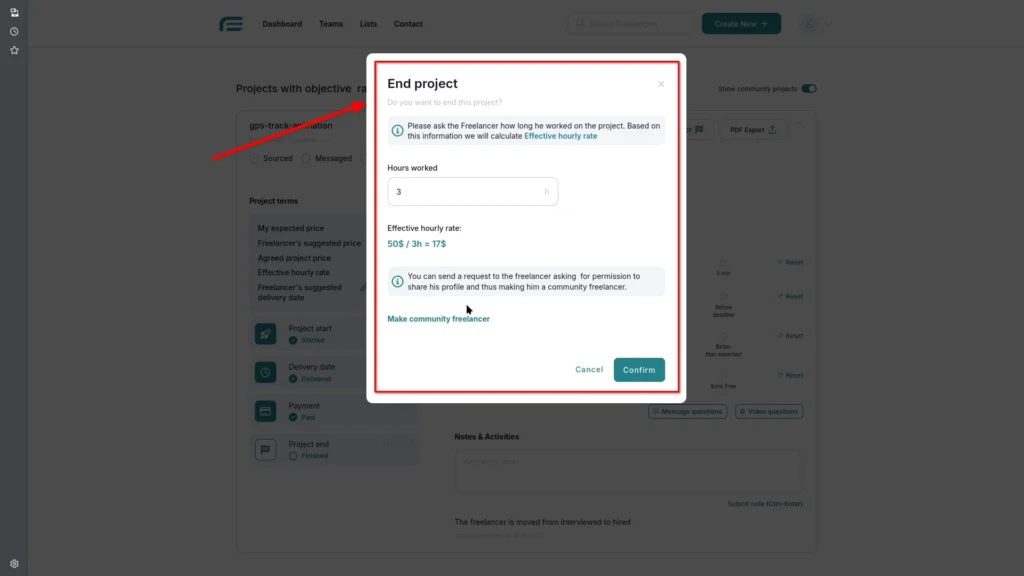
Promote Top Talent to Community
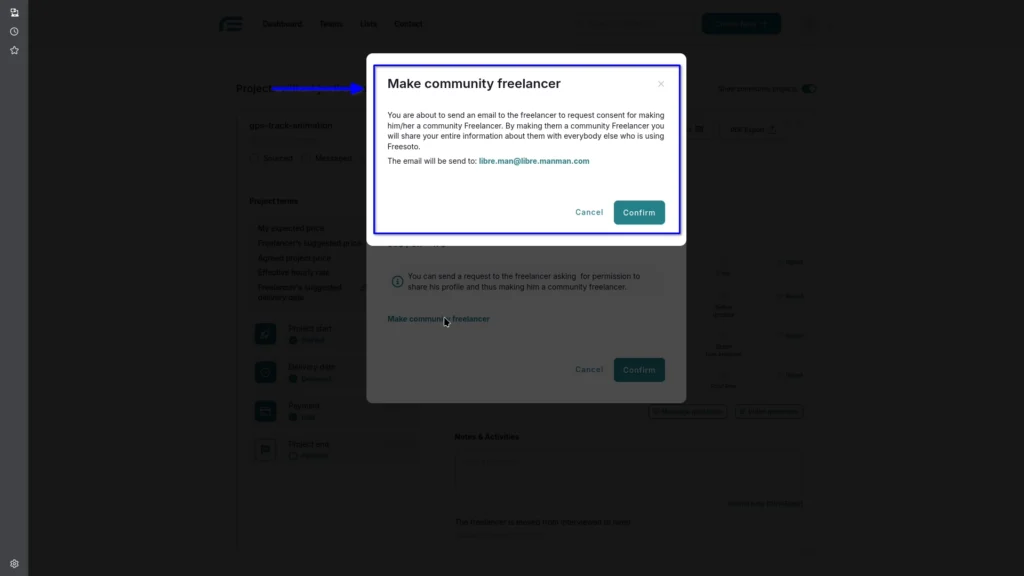
When you come across a freelancer who truly stands out, you can make them a community freelancer. This allows you to share their profile with other Freesoto users so the whole community can benefit from your great find.
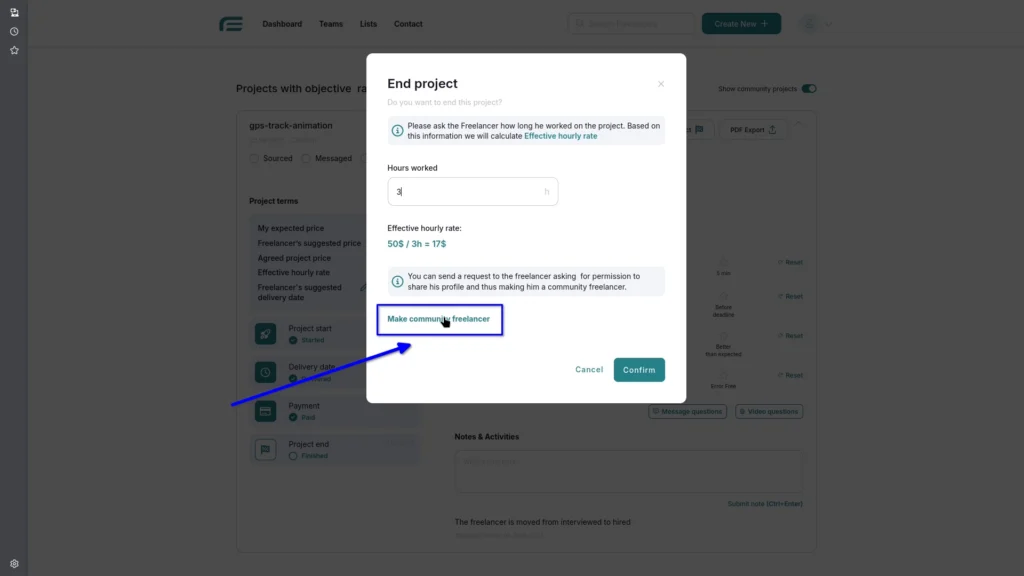
When you click “Make Community Freelancer” in the End Project window, another pop-up window will appear with a Confirm button. Simply click Confirm to complete the action.
Simplify Your Hiring with Freesoto
And that wraps up our quick tour of Freesoto version 5! We hope you’ll enjoy exploring it and find it helpful. Try it out for free at Freesoto.com, and if you have any questions, feel free to reach out through the contact form on the website.
https://3dprint.social/models/lv725hfcccmh/model_files/3pzqg6v9qvhs?embed=true